meshtastic
How it Works
Meshtastic works by using radio frequencies to send and receive messages between clients (the device). This means that communication requires line of sight and that the best reception will come from placing your device as high as possible. The bluetooth range for connecting to the device is ~30ft, so you should be able to leave it stationary and stay connected while walking around your house.
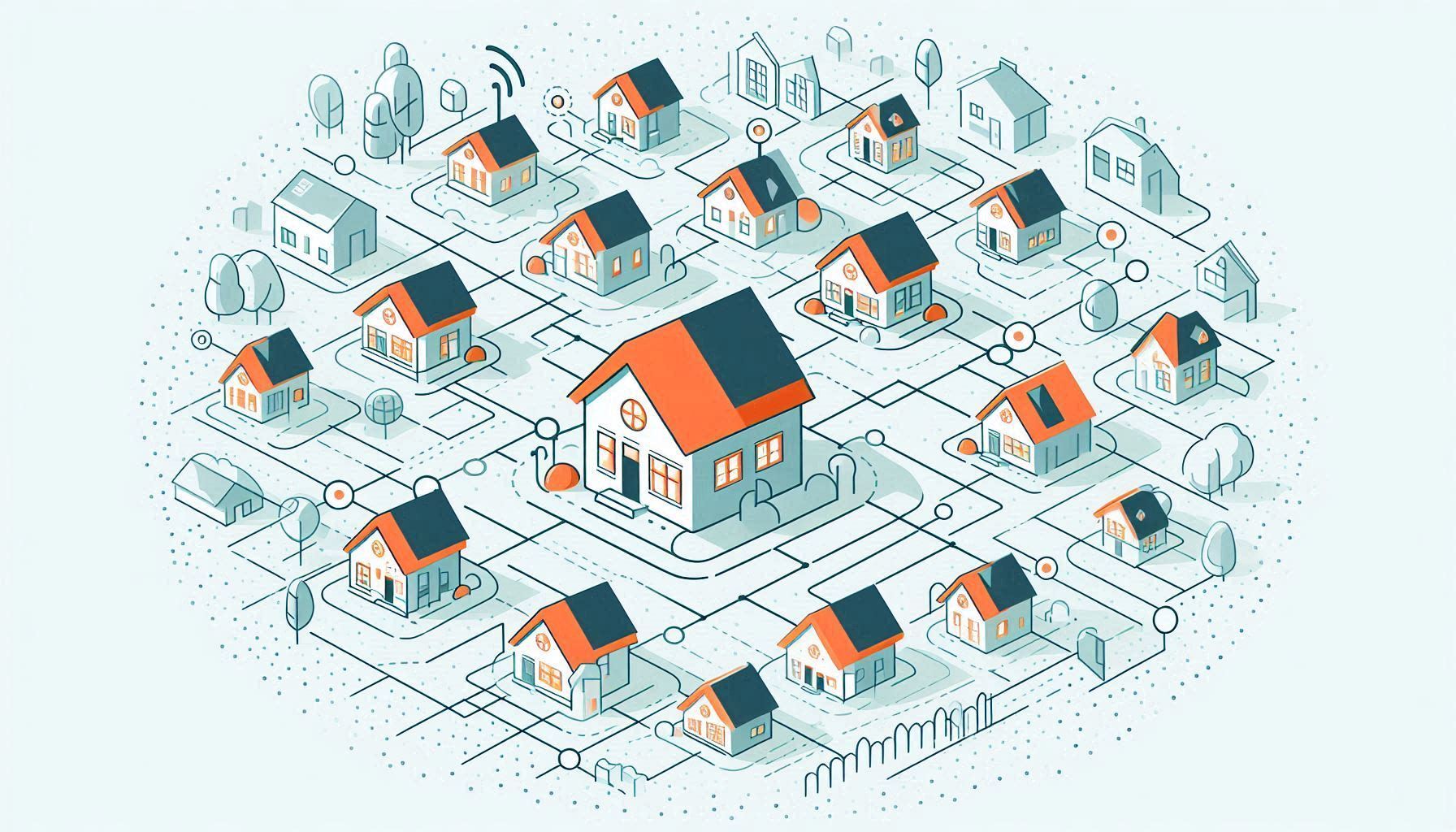
Here is an overview of what Meshtastic is and how it operates. Don't worry if you don't understand everything, the core idea is that the devices connect to one another and allow you to text back and forth with anyone in range.
Start Here
iPhone

Coming Soon.
The navigation in the Meshtastic app is done through the bar at the bottom of the app. It looks like this:
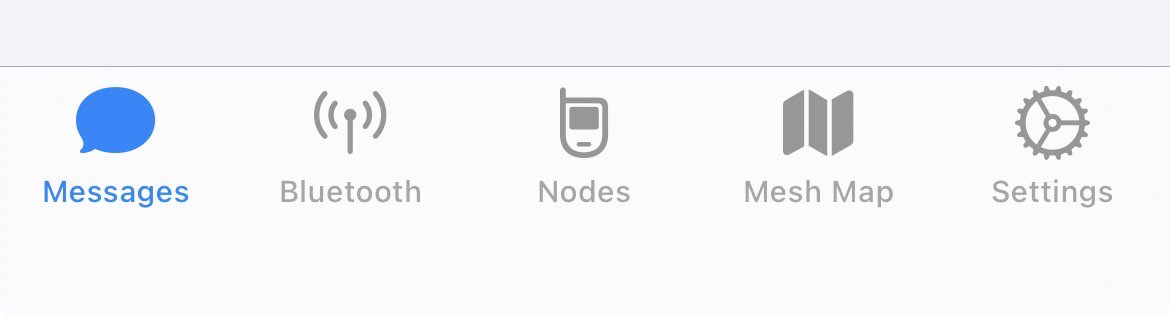
From left to right these are:
Android
Coming Soon.
The navigation in the Meshtastic app is done through the bar at the bottom of the app. It looks like this:
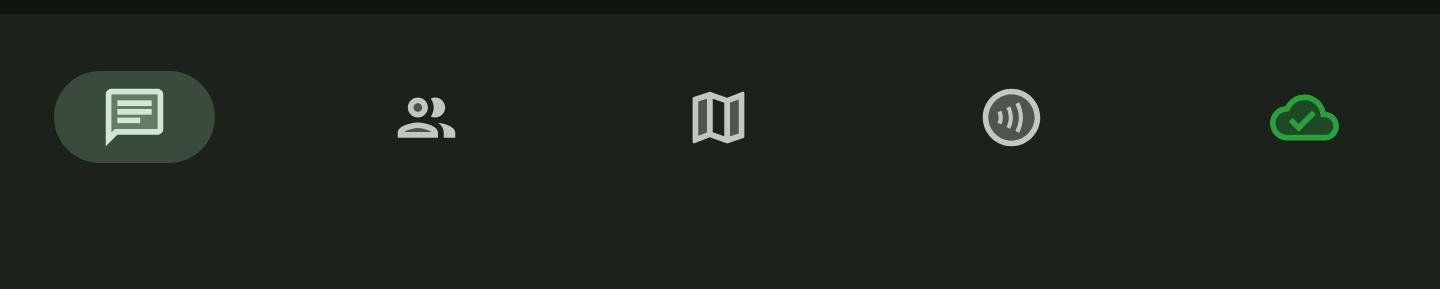
From left to right these pages are:
Placing your Device
The mesh network operates using radio frequencies. This means that line of sight is extremely important to being able to send and receive messages. It is highly recommended to place your device somewhere high and near a window. This should help maximize the range of your device. Your phone will connect to the device over Bluetooth which has a range of ~30 feet, so you should be able to place the device and still move around your house while staying connected.
Turn on the Device
The simplest way to turn on the device is to plug in the charging cord. This will start up the device as well as begin charging it. If you shut the device off, and know the battery has charge, you can also press the small button next to the USB port. This button is the reset button, so if the device is already on, pressing this will reboot the device. Once fully charged the device should last for several days without needing to be recharged.
Connect to Device
To connect to the device for the fist time navigate to the Connections tab (Android) or the Bluetooth tab (iOS).
Ensure the device is powered on either by plugging it in, or by pushing the small button next to the charging port. A small light on the bottom will blink occasionally when powered on.
The device should show under Available Radios on iOS and in the pop up from pressing the green + button popup on Android.
After selecting your device you will be asked for a pairing code. The default pairing code is 123456 . If your device has a screen the pairing code will show on the display.
The device should now be connected and the information will load into the different views. It can take some time for other nodes to appear in the list, but it should still be possible to send and receive messages. It can take up to 30 minutes for other nodes to start showing in the Nodes list after first powering on the device.
Sending Messages
To send messages navigate to the Messages tab. Select the channel or device you would like to message. For Ward communication use the Northpointe channel. Type your message and press send.
The length of each message is limited to prevent a single message from taking too long to transmit. You are still able to send multiple messages. After a message is sent you should see Acknowledged on iOS or a checkmark in a cloud on Android. This indicates that another node has acknowledged receipt of the message. If it shows No response (iOS) or a cloud with a line through it (Android) then the message was not acknowledged. This does not necessarily mean the message was not received, but it usually is the case. If you have sent/received messages from a similar location before then it is likely an indicator that your signal or connection to other devices is low. Try placing your device in a higher location and try again.
Direct Messages
It is possible to send a private message directly to another device without using the Northpointe or other channels. This would be the same as texting the other person, but it generally requires that both parties be online and connected for the messages to send and receive correctly. There are slightly different steps to initiate a Direct Message on iOS and Android.
iOS
On iOS in the Messages tab, under Direct Messages, you should see a list of all nodes you are currently connected to, or have previously sent/received a direct message. Open the message thread and send a message as normal.
Android
On Android under the Nodes tab, long press on the colored rectangle containing the short name of the device, in the popup select Direct Message. This will open a direct message thread where you can send a message as normal. Once a message has been sent or received from a device, that device will be listed under the Messages tab for reference.
FAQs
How do I turn off the device?
On iOS navigate to the Nodes tab. Select your device from the list. In the page that appears, scroll down to the bottom and press Shutdown.
On Android navigate to the Nodes tab. Tap the short name (colored bubble) and select More Details. Scroll to the bottom and press Shutdown.
I can't see any other nodes in my list
When first turning your device on it is common to no see any other devices listed under the Nodes list, or to have them all shown as not seen since the last time the device was powered on. If the device is on it is capable of sending and receive messages. You can send a test message out on the Northpointe channel to verify that anyone else is receiving your message. If no response is received to your test message, and the Node list has not updated after an hour then reach out to Derek Reinhardt for additional troubleshooting steps.
Can I change the name of my node?
Yes. This can be done in the Settings under User. This is highly recommended  Meshtastic Advanced User Guide
Meshtastic Advanced User Guide Troubleshooting
This guide is designed to be focused on the needs of the ward network. If you are interested in learning more, the Meshtastic documentation goes into a lot of depth. https://meshtastic.org/docs
No other devices listed
When first turning your device on it is common to no see any other devices listed under the Nodes list, or to have them all shown as not seen since the last time the device was powered on. If the device is on it is capable of sending and receive messages. You can send a test message out on the Northpointe channel to verify that anyone else is receiving your message. If no response is received to your test message, and the Node list has not updated after an hour then reach out to Derek Reinhardt for additional troubleshooting steps.
Messages not being Acknowledged
When a message is not acknowledged by other devices it can be for a couple of reasons. The most likely is that there are no other devices in range. You can verify this by checking the Node list and checking if other nodes are listed as currently connected. You can try and place your device higher, closer to a window, or both to see if that helps with the range on your device.
Resetting the device
It is possible, but should be a last resort
1.
Navigate to the Nodes tab.
2.
Select your node and click “More Detail”
3.
Scroll to the bottom, click factory reset