Prerequisites
Make sure that Markdown is enabled! Sometimes you have to press a button to toggle it (such as the paint roller on Simply Plural).
Basic formatting
Bold, Italic, Underline, Strike-through
**Bold**
*Italic* or _Italic_
~~Strike-through~~
__Underline (or Bold)__
Octocon only underlines text formatted as hyperlinks (see below).
Spoilers
Any text between || two vertical bars like ||Spoiler|| will hide all text behind a dark overlay that others will need to click in order to read.
Here's an example…

This is useful for content warnings and such. Supported by Discord and Ampersand only.
Quotes
Quoting works in different ways depending on the app you're using.
Usually, you use either > text , >> text or >>> text to make quotes and potentially sub-quotes.
This is what a quote can look like, usually.
On Discord, this works differently: > text will make it work for a single line, while >>> text will make the quote go down until the end of your message.
On some apps like Notion, you need to use a | vertical bar instead of an arrow for this to work.
Collapsible Text Toggles
In some apps, the above > text format will instead add a toggle that will allow readers to show and hide below text, like this example:
You just revealed some text!
Everything inside the toggle can be shown or hidden by pressing this same arrow .
This can work as an alternative to spoilers if that feature isn't available in the app you're using, and for many other purposes.
Code blocks
To make inline code , surround text with `
a little `code here`
Alternatively, to make a code snippet , surround by three of the `
```py
print("Hello world!");
```
print("Hello world!");
Not all apps support code snippets. Some don't need you to type the language name, but instead select it in a given list.
Headers
Headers turn text big and add contrast. In some apps, they also show in a table of contents (like the one on this page). Here's how to do them:
header 1
# header 1
header 2
## header 2
header 3
### header 3
Depending on the app, you may be able to go up to 6 .
Small text
On a few apps like Discord, you can also do the opposite:
-# small text
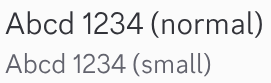
All headers and small text affect the whole line / block / paragraph.
Links and Attachments
Hyperlink Text
Hide an URL inside preformatted text:
[The P4& homepage website](https://project4plurals.carrd.co)
This will render differently on most apps. Usually, it will look like this link to P4& .
Attach Media
Online

Will preview the image we uploaded at https://scratchupload.xyz/pfruit/icons/p4p.webp. Notice the added ! mark at the beginning that indicates an embedded attachment.
Some apps like Simply Plural also allow you to change the image size by specifying a width and a height in pixels, added after the URL like in this example:

Notice the added #1234x567 : The first number specifies the width and the second specifies the height . You can specify any number in pixels, with the only limit being your image's actual resolution.
Note: Some apps do not allow the usage of remote media by default or at all for privacy reasons . However, they often give an alternative way, such as the local "Assets" described below.
Assets
We consider you have your asset loaded and ready to use across the app.

This is how few apps like Ampersand can integrate assets through the app. Notice the added @ that is used to indicate the usage of an asset.
Lists
text
text
etc
1.
text
2.
text
3.
etc
Unchecked
Checked
Simply Plural and most note-taking apps support using check-boxes instead of a dot.
You can also add two spaces to make sub-lists, such as:
- parent list 1
- sublist 1
- sub-sublist 1
- sublist 2
- parent list 2
Render:
parent list 1
sublist 1
sub-sublist 1
sublist 2
parent list 2
Tables
Tables can have any number of columns and rows. Here's a full example:
| header A | header B | etc. |
| - | - | - |
| body A | body B | can add more columns! |
| more body A | more body B | also keep adding rows! |
If you copy and paste into a supported app like Simply Plural, you'll remake this 3×3 table!
header A
header B
etc.
body A
body B
can add more columns!
more body A
more body B
also keep adding rows!
How it works
From top to bottom:
The first line is your header row.
Text may be semi-bolded in this row.
The second line is used to indicate a table and the number of columns your table has.
Between each | vertical bar, they only need a single - dash and nothing else (it won't be shown in the result).
Lines and Paragraphs
Apps will interpret new lines in two ways. Either:
The app doesn't support paragraphs;
The app interprets one line break as a new line, and two line breaks as a new paragraph; or
On line breaks, the app will make a new paragraph (or "block") by default — you can make it a true new line usually with Shift + Enter
multiple lines
into a single
paragraph.
paragraph.
Cancel Formatting
Want to use some of the formatting characters but don't want the result to be formatted? You can add a \ backslash before each formatting character to counter this.
For example: \*\*Non-bold text\*\* will show "Non-bold text" surrounded by the * characters as if they were normal ones. Image examples:


This is often useful when you add text decorations in Markdown fields to avoid side effects. This works almost anywhere (and lucky us, not on Anytype lol).
That's all!
If there's something we missed, please send us a feedback in a #feedback post in our support server!
For more variety, you may be interested in checking Rentry, a website that allows a lot more than usual such as text colours and a lot of other things. Some formatting also differ from other apps, so make sure to read their "How" page!